Posts

22 BYOD Activities That Work With Smartphones

Image
BYOD is not just about students carrying laptops and tablets. BYOD allows us to rethink the power of having a tiny, portable computer that is constantly connected to the internet. There are so many ways that teachers can use smartphones to enhance their lessons and curriculum. Sure, you  wouldn't  want to type a Master’s thesis on a smartphone, but you can certainly author a few basic paragraphs to begin your rough draft. Below is a list of middle school and high school activities that you can use in your classroom that work well with smartphone technology. Basic research Internet scavenger hunt : Students use basic Google searches to find information. “Name 2 US presidents who were unmarried while in office.” Givens in word problems : Students look up missing parameters in word problems. “Calculate the momentum of a baseball thrown at the speed of the world’s fastest pitch.” Fact checking : During class, students can be responsible for finding/verifyin...

Share Resources the Easy Way with a Shared Google Drive Folder

Image
Google Drive makes it easy for teachers to collaborate on resources such as handouts, assessments, worksheets, etc. By setting up a shared folder in a Drive, teachers can easily upload documents and see what else others have shared. One great example of this is when teachers of the same course (say, 9th Grade Science) want to share quizzes, labs, assessments, projects, etc with each other. These teachers can upload their own work, and browse the work that others have uploaded as well. Instructions Create a shared folder. Open your Google Drive in a web browser and click on Create > Folder. Give the folder a name and click "Create." Check the box next to the file, and click the "Share" button at the top. Choose your collaborators, and give them the "Can edit" permission. Click "Send" when done. That's it! Now you can upload files of any type into that Google folder. All files in the folder are automatically shared,...

Google Docs Add-Ons!

Image
Google Doc users will notice a new menu item when they create a Google Doc called "Add-ons." This lets you select from a variety of extras that you can use to increase the functionality of Google Docs. There are 35 Add-ons available (at the time of this posting), although teachers especially may be interested in these: EasyBib : integrates citation references into a document, much like the EasyBib website. Thesaurus : Just what it sounds like - helps you find synonyms Merge and Avery Mail Merge : lets you merge data in a Google Spreadsheet into a Google Doc. Highlighting tools : implements highlighting functions, great for reviewing a document VexTab Music Notation : allows you to add musical notes and staves into a Google Doc. To use one of these addons, simply click the "Add-ons" button in the menu of your Google Doc [Don't see an Add-ons menu? It may be a few days before Google rolls it out to everyone.] Choose the Add-on you like, and fol...

Math and Science Equations in Google Docs

Image
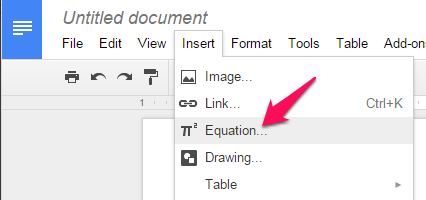
Students and teachers can insert fairly complex math and science equations into their Google Docs using a seldom-noticed feature called the Equation Editor. It can be accessed through either View > Equation Toolbar or Insert > Equation... It's pretty powerful, once you get the hang of how the cursor works. It's great for equations with numerators and denominators, and for numbers with subscripts and superscripts. If you use shared Google Docs in your science class, for example, this makes it easy to include formulas in lab reports or other assignments. Bonus points: Do you recognize the three equations in my example?

Integrating Technology: Don't Over-Plan?

Image
Have you ever been to an over-planned party? One where the host or hostess has planned every minute of the party so carefully that the guests felt like marionettes? Where the host or hostess, in effect, says "Stop having that un-managed fun, and come over here to do my structured fun instead?" This party planner knows that preparation is vital to a great party, but has not yet learned that the guests need to be able to participate naturally. Some fun can be planned in advance, but some fun must happen spontaneously, based on who attends. No, don't start socializing! We haven't played the icebreaker game yet! Now go back to that last paragraph and change the party to a classroom, the hostess and guests to teacher and students, and the fun to learning. Go ahead, I'll wait here. We can't help it. We plan. Teachers are planners. It's what we do. To keep our students as productive as possible, we plan our classroom management procedures care...

Make a Slideshow of Your Instagram Photos

Image
This was specifically written for someone a making a slideshow to display before a large group presentation. The directions are specific for a Windows 7 laptop. Feel free to adjust them to suit you own needs! Get  your Instagram pictures Go to http://instaport.me Click "Sign in with Instagram" and sign in Choose "All my photos" and click "Start Export" Let it work for a few minutes Click the little "Download only" link to save the zip folder. Open the zip folder and click "Extract all files". Click on "Desktop" and then click "Make New Folder." Make a folder called "Instagram Export." Click "Extract." Install PhotoStory Go to http://download.cnet.com/Photo-Story-3-for-Windows/3000-12511_4-10339154.html and click the big green "Download Now" button. The specs label this download for WinXP, but it works just fine on Win7 as well. Run the downloaded f...

Little-known Moodle Tip: Using your Moodle Logs

Moodle keeps track of when users access it and make changes. Teachers can use the logs to see if/when students open the course, open a resource or activity, and contribute a file, forum post, or other schoolwork. To use this feature of Moodle, open your course and look in the “Administration” block.  Click the “Reports” link. This brings you to a screen with a lot of options.  They are not well labelled, but they allow you to narrow your search.  In orderfrom left-to-right, they let you select: The course to view All students or choose one student All days or just one day All assignments or just one assignment Type of action, such a when a student “views” a resource or “adds” a file. Display results now or download to a text doc or spreadsheet. This can be a very useful tool. You can see if students are accessing your course materials and when, and get a very specific list of their coursework.