Posts

Text Me Merry Christmas: 12 Days of Techmas, Day 14
Image
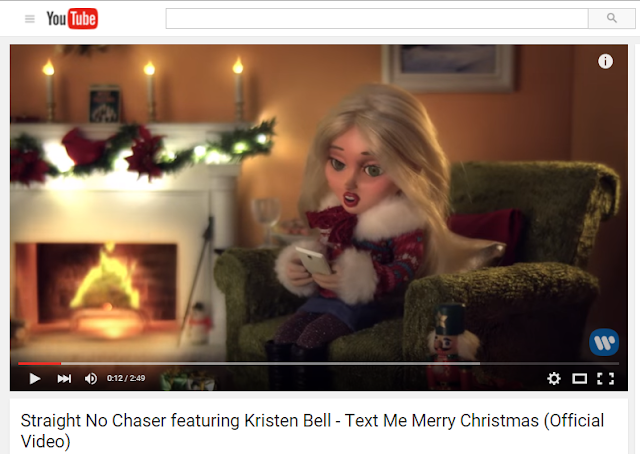
Bonus Tech Treat! A 21st Century Christmas Carol! Sleigh Rides? Sugar Plums? Partridges? If you feel like your traditional Christmas Carols are still living in the 1800s, take a moment to enjoy this new Christmas song that reflects the best of modern communication! Kristen Bell  (of  Veronica Mars  and  Frozen  fame) and the a cappella group  Straight No Chaser  bring you " Text Me Merry Christmas"  for your 2015 holiday pleasure! It's catchy, has a classic stop-motion video, and will warm the WiFi of your heart! ​ Text Me Merry Christmas - YouTube Video BTW, it's perfectly safe to play in class, and students might get a kick out of it, too! Happy Holidays! 

Snow Closings Text Alerts: 12 Days of Techmas, Day 13?

Bonus Tip! Text Alerts for Snow Closings and Delays My school, here in the greater Boston area, does not call teachers or activate the emergency phone tree in case of snow cancellations. Instead, fire up your  AM radio  and listen to the announcer read through the cancellations list. Just kidding!  Instead of sitting next to the radio,  sign up for Text Alerts!  As soon as Dr. Jackson notifies the broadcast media, you will get a  text message on your cell phone  notifying you about the cancellation or delay. This is a free service offered by WBZ in Boston. Many of us signed up for this service in past years, but if you are new, or never signed up, or need to update/conform your settings, I've typed up step-by-step instructions on how to do it. ​>> School Closing Text Alert Instructions ​ Of course, if you don't have a cell phone, I always post the cancellation or delay on the HHS website, Facebook, and Twitter feeds, just as so...

Google Santa Tracker (Plus a bonus Star Wars tip!): 12 Days of Techmas, Day 12

Image
For the last  day  of tech tips, I wanted to give you  some fun stuff  you can share with your students (or savor for yourselves in free minute or two). This year, Google  expanded its Santa Tracker program  into  series  of online games, learning activities, and cartoon animations. They call it Santa's Village: it started with five activities, and they added a new one every  day  in December. ​ Google Santa Village and Santa Tracker This is  great for students (and adults)  with a little time to kill waiting for the Winter Break. It is designed as a "fun for everyone" kind of event, suitable for all ages. Here is a list of  my favorite parts  of the Santa Village activities: Learn Code Lab  - kids  learn basic coding  my moving your elf around the map #1 Season of Giving  - online coloring book about environmental issues #3 Santa Selfie  - give Santa a haircut, beard t...

Special Characters: 12 Days of Techmas, Day 11

Image
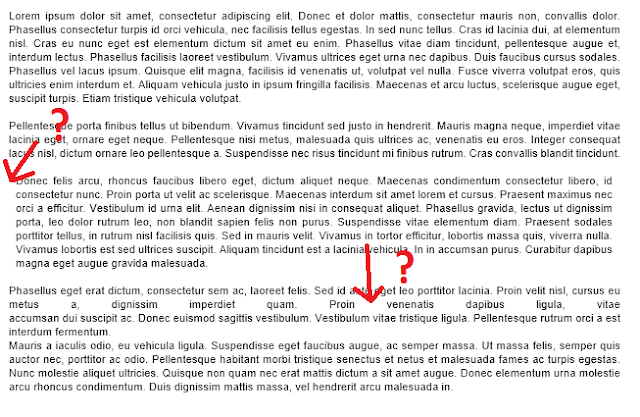
There's a lot of talk about web apps and the Googleverse lately, but I thought it might be nice to share a tip about the teachers' tried-and-true friend,  MS Word . Today's tech treat is about  Special Characters . Not the special characters sitting in the back row of your B Block class -- I mean  special invisible symbols  that MS Word uses for formatting and spacing. I field this question a lot: " Why is Word spacing or formatting strangely? " Without knowing exactly what the person was typing, it's sometimes hard to say.  For example , let's troubleshoot this page of text. What's with the weird spacing? My first step in troubleshooting is to  Show Special Characters . I do that by clicking the button that looks like a  "Paragraph mark" , like so: Word 2007/2010/2013 ​ Word 2003 ​ Now I see the  "invisible special characters"  that are telling Word how to format the page. Recognizing the sy...

Winter Break Backup: 12 Days of Techmas, Day 10

12   Days  of Techmas,  Day  10: Winter Break Backup As part of a tech person's traditional "sales pitch" to get people to  backup their files , we usually describe horror stories of how you could lose all your stuff. Because this is the festive holiday season, I'm going to  skip the doom and gloom , and assume  you know all the reasons  to back up your files.  OK? Are we agreed? You know why it's important to backup your files? OK, let's move on to the "how." As a Google for Education district, each teacher gets  unlimited storage space  in the  Google Drive for storing files. It's not really designed to serve only as a backup, but why not use it if you got it? Winter break is a great time to do a backup. Copying all of your files takes a long time (hours or  days ) and temporarily slows your computer, so it's most practical to do it when you don't need to use the computer for a  day  or two, ...

Gmail Inbox Organization: 12 Days of Techmas, Day 9

Image
In Gmail, you can  organize your inbox so that your most important stuff is near the top. There are a few different ways to set up it, but I'll show how I set up my Inbox and let you experiment from there. ​My Inbox shows email in this order of priority: 1. Starred Emails, both read and unread 2. Important and Unread 3. Everything else "Importance" is determined automatically by Google, and it does a really good job. Stars are marked by me. If I read a message that I know I need to come back to I click the Star icon on the message (as shown in the two images below). By starring emails, I know I won't lose forget about important messages as new email comes in.  ​  To set this up for your Inbox, click the Settings Gear and choose "Settings." Then, click the Inbox tab, and adjust the settings until 1-4 look like mine. ​ As you set yours up, you will notice that there are other options that you may pref...

Chromebook FAQs: 12 Days of Techmas, Day 8

12   Days  of Hanutech,  Day  8: Chromebooks FAQ Since Chromebooks became a major topic of conversation at my school, there have been lots of questions about how Chromebooks work. As today's tech treat, I'm sharing a little FAQ sheet that compares how laptops and Chromebooks work. Here are a few examples: Can students work without an internet connection? Laptops: yes, they can create, edit, and save files on the hard drive Chromebooks: yes, they can create, edit, and save files in “offline mode,” which will sync next time they are online How long does the battery last? Laptops: 2-3 hours Chromebooks: 8- 12 hours You can check out the rest of the questions and answers in the doc below! ​ Chromebooks FAQ ​ Have suggestions for other questions? Comment below!