Posts

Showing posts with the label 12 Days of Tech

The Secret to my Animated Gifs

Image
I'm finishing up this year's  12   Days  of  Techmas  with my  most requested tip . It's a  little scary  to me to give this one away, because 1) it's  like telling a secret family recipe , and 2) it's  dangerous  if used improperly,  like nitroglycerin or Twitter . But why not? It's the season of giving, after all, so I'm sharing with you the  source of my cute little animated images  that I've sticking in my  12   Days  emails! ​ 12   Days  of  Techmas , Day  12 : The Secret to my Animated GIFs Those little mini-movie images are called  Animated GIFs  (Pronounced with either hard G like "garden" or soft G like "giraffe." Computer nerds can wage weeks-long flame wars about which pronunciation is correct.) ​ A little history When you take digital photos, they're usually stored as JPG images.  GIFs are another format ; they're are not a...

Google Docs Tricks for Teachers

Image
1. Fonts When you first used Google Docs, you may have been disappointed by the small number of available fonts. You may not realize that Google has  added a lot more  (a  lot  more) fonts to the available list: you just have to go get them. Click the Fonts button, scroll to the bottom, and click  More Fonts . 2. Clear formatting When you copy/paste text into a document, sometimes it brings its own font style and size, which looks mi-matched in your document. When this happens, highlight the text and choose  Format > Clear formatting . This  removes any hidden font "junk"  and lets you start with clean text. 3. Strike-through This one is genius brilliant complicated suprisingling useful. To create “strike-through” text like this , go to Format > Strike-through 4. Columns You can make  two- or three-column text  by highlighting the text and choosing " Format > Columns ." 5. Style Headings In the...

Plickers

Image
As the tech integration guy, it's my job to be a  cheerleader for tech  in your lessons. But that doesn't mean the students (or you) have to be using tech  all  the time.  Sometimes  when students are in the middle of some high-level thinking, the  last thing  we would want is for them to drag out their tech for a simple online quiz. On the other hand, using  digital tools for quick check-ins  has  major  advantages, like letting kids try out a word problem or check a concept: you  find out right away  who gets it and who doesn't, without having the  hassle and delay  of collecting, correcting, and passing back. PLICKERS  are quietly making their known throughout schools as the  best of both worlds . Plickers are  printable cards  that students use to answer questions. Every student in class has  their own card  with its own unique code printed on it. Students...

Digital Note Cards

Image
Just a quick one today: a  new trick for an old technique: making note cards. Sometimes it is appropriate for your students to make  a set of note cards .The classic "old-school" example is teaching students to write  research papers : they would put  sources, quotes, and other important info  on index cards, and could then  sort the cards  afterward to organize the sections of their paper. Even for writing without research source, some teachers would have students make note cards to help  organize content paragraphs  of a longer piece of writing. Note cards are great for encouraging thoughtful planning before you start "just writing stuff down" in your document. ​"Is this enough note cards for my 3 paragraph essay?" The  biggest advantage  of note cards, of course, is their  ease of re-ordering . You can just flip through the cards around and keep re-arranging until you are happy with their sequence. ...

Teachers Can Code!

Image
There is a lot of talk about  teaching kids to code , but most of us don't have a lot of experience with it. We've been trained by Hollywood to think of coding as tech wizardry, but it's really not.  It's a  few learned skills  combined with  thoughtful planning  and  creative, logical problem solving . This is NOT what coding is like: THIS IS what coding is like As someone who likes puzzles, I love coding in my spare time. Even though it uses computers, it is a  surprisingly creative process  that taps the part of me that enjoys logic games and riddles. If you would  like to explore the world of programming and coding , there are three great places to start, depending on your style. You won't be hacking NORAD, but you'll make basic programs yourself and  get an idea about what it's all about . 1.  Scratch . Scratch is a free coding program for children, and requires almost no typing. It involves...

Your Browser Tabs Intervention

Image
Hi, come on in, have a seat. Thanks for coming. Your friends and I have been wanting to talk to you for quite a while. It's about  your browser tabs . Yes, I know. You  need   all of those open tabs   because you're working on so many things at once. That's what good multi-taskers do. But, just like chocolate, snow, or reality television,  too much can be a bad thing . Yes, I know, you're working on ALL of these things at the same time... Sure, tabs look like cute little bumps at the top of your browser, and they're  so  handy. But what you don't realize is that  each tab it really it's own separate computer program . You wouldn't try to run 25 computer programs on you laptop at once would you? Yet, that's  exactly  what you're doing with 25 open tabs.  Sometimes you have  so many  open tabs, you  don't even remember  what you have, and you start  duplicating  your tabs.You kno...

Google Keep

Image
Google Keep  is an interesting but handy little Google feature that lets you make reminders and virtual sticky notes.  I'm sure you are totally super-organized and never forget stuff, but I definitely need a little help.  Plus, I'm sure that even if  you  don't need a note-taking app, you might know a student or two who could benefit. There are lots of note-taking apps out there, but Google Keep has a few  sweet features : It  syncs anywhere  I use Google, so I can see my notes on my laptop, my phone, my tablet, my Chromebook, or wherever. I can  type notes in the laptop , and then use my  phone to check off to-do lists . It can send me a  reminder   at a  time  or  location   of my choosing. My phone will "bing" at the right time or place.  For examples, it can remind me... when I get home, call the bank next time I'm at the grocery store, buy milk 3 months from now, cancel tha...

Newsela - Current Events at Different Reading Levels

Image
An important part of being a  good citizen  is keeping up-to-date on  current events . As adults, we use a variety of  news sources  to stay aware of what is going on in politics, education, business, and whatever other topics we are interested in. A great way to  encourage this responsible behavior  is to  discuss current events  in class, and give students  practice reading  the news. However, our students have a  wide range of reading abilities , and  not all  of them can read an article with the  language density  of the Wall Street Journal.  That's why I like  Newsela .  Newsela  is an online news source that re-writes  real, current news articles  at several different reading levels. For example,  this morning's   article about the Tax Bill  before congress:     Original Reading Level Tax bill clears Senate in big boost for ...

Holiday Activites for Filler Time: 12 Days of Techmas, Day 12

Image
It happens to all of us -- the test, quiz, or activity we planned for the  day -before-vacation  finishes 20 minutes early , and we're stuck with a bunch of energetic teenagers  hopped up on candy canes and Hershey kisses .  Never fear! I've got stuff for you to  entertain the class  with, to keep them happy and manageable! 12   Days  Gift Hunt  - what does it cost to give the gifts of the  12   Days  of Christmas song? A Brief History of Santa Claus  - cute 4 min video on how the modern Santa came to be SpinTheDreidel.com  - learn how to play, and then play online! Design a Gingerbread House  - virtual Gingerbread houses (but turn off the music!) Holiday Hangman  - virtual hangman with Holiday words (come to think of it, you probably don't really need technology for this....) Google Santa Tracker  - loads of games, activities, and cute stuff! I hope everyone has a great last  d...

Quizzes in Google Forms: 12 Days of Hanutech, Day 11

Image
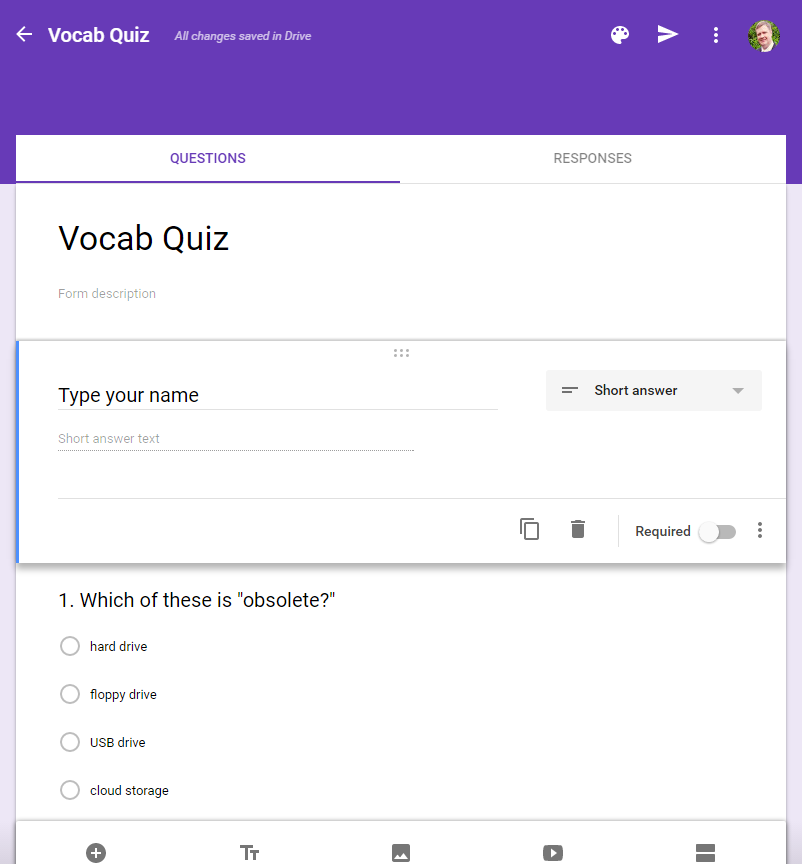
Google Forms now gives teachers the ability to create self-grading quizzes. You enter the questions and the answer key, students take the quiz online, and bam! Instant assessment! Go to your Google Drive Click the blue NEW button , hover over More > and then choose Google Forms Create the Google Form as usual, including questions with multiple choice or checkbox formats. Best Practices Tips: - number your questions. This makes it easier for students to track their progress while taking the quiz, and for review afterwards. - add a question where students enter their name (just in case of any log in issues) Note : You can also add text- or paragraph-based questions, but they will not be auto-graded. You would have to come back and ready them one by one. In the top right-corner, click the three dots , and choose Settings . There are three “tabs” at the top, called “General,” “Presentation,” and “Quizzes.” Set these settings : General CHECK Collect email addr...